Selling covered calls and cash-secured puts on E*TRADE is straightforward once you know the flow. The part that trips most people up is that the trade ticket defaults to Stocks — you have to manually switch the Security Type to Options before you can access the options chain. This guide walks you through every screen tap, from your portfolio to the order preview, using real screenshots from a live E*TRADE account.
📋 What You'll Need Before You Start
You need to own at least 100 shares of the stock you want to sell calls on. Each contract represents 100 shares, so 2 contracts requires 200 shares.
You need enough cash in your account to buy 100 shares at the strike price. If you sell a put at the $28 strike, E*TRADE holds $2,800 as collateral until the position closes.
You'll need options trading enabled on your E*TRADE account. Go to Account Settings and apply for options approval if you haven't already.
Find the Stock in Your Portfolio and Tap It
Open the E*TRADE app and go to your Portfolio tab. You'll see your holdings listed with current prices and daily gains. Find the stock you want to trade options on — in this example, we're using APLD (Applied Digital Corp), trading at around $26.80.
Tap on the stock symbol to select it.
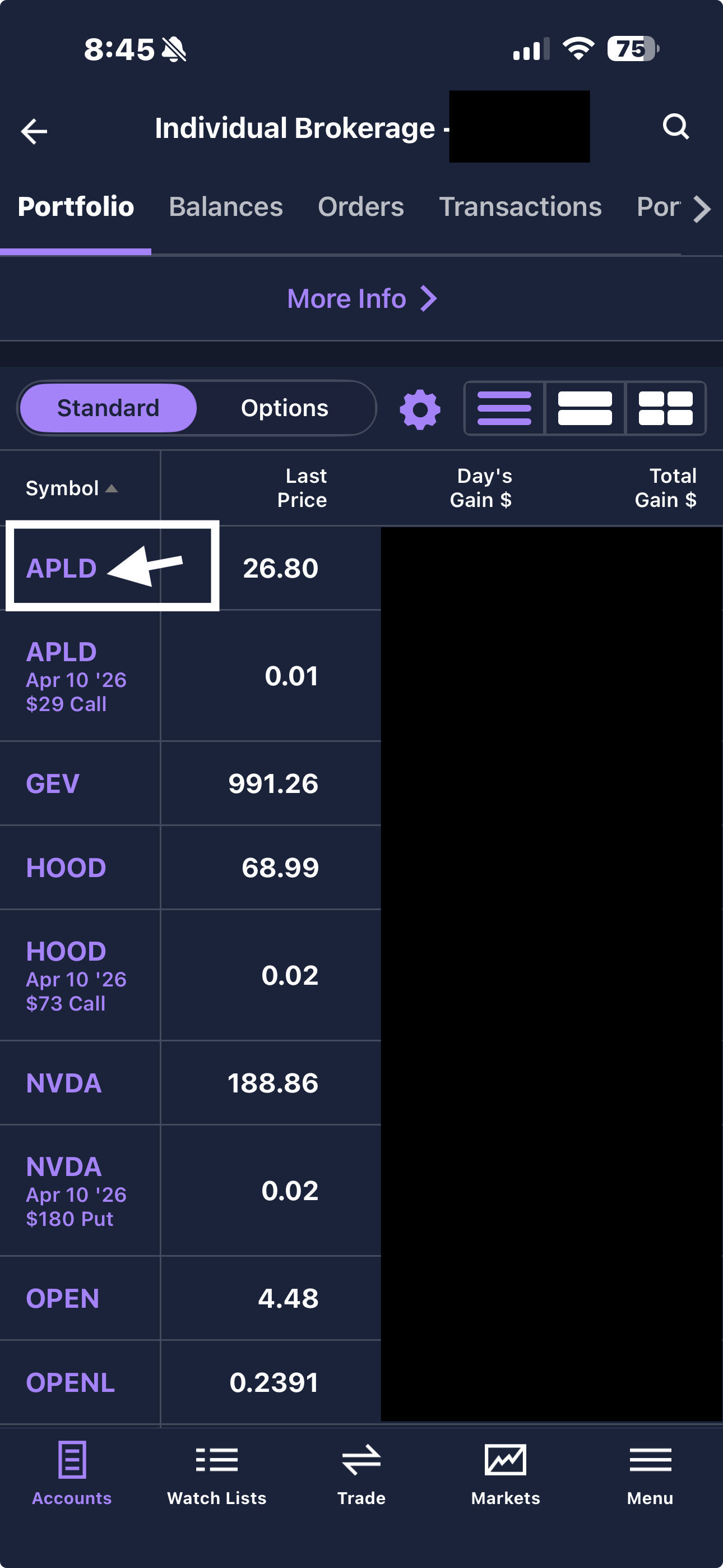
Tap the stock symbol in your portfolio to select it
Select "Sell" from the Action Menu
After tapping the stock, a popup menu appears with several options: Quote Details, Buy, Sell, View Tax Lots, and Set Alert.
Tap Sell. This opens the trade ticket for that position.
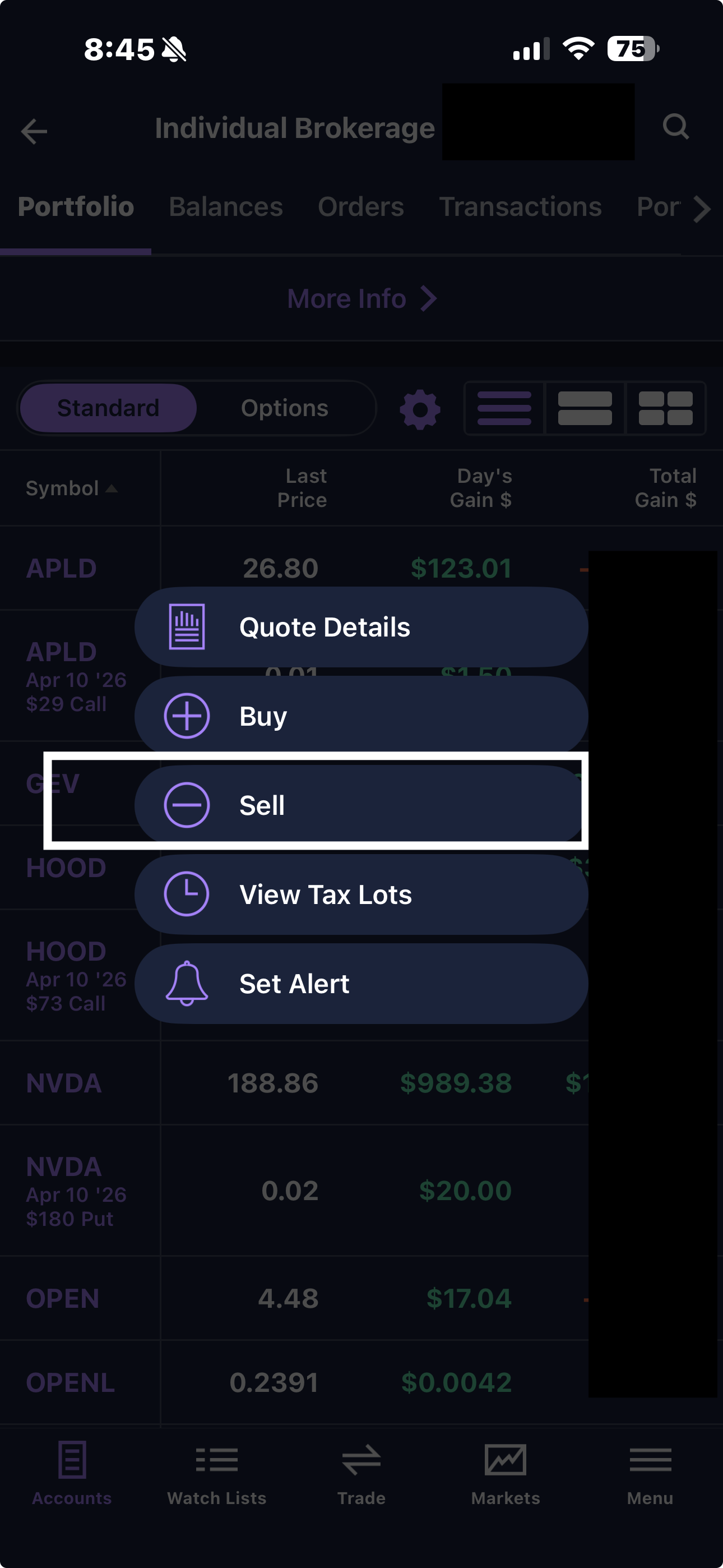
Tap "Sell" from the popup menu
Change Security Type from Stocks to Options
Here's the step most people miss. When the trade ticket opens, the Security Type defaults to Stocks. You need to tap "Stocks" and change it to Options.
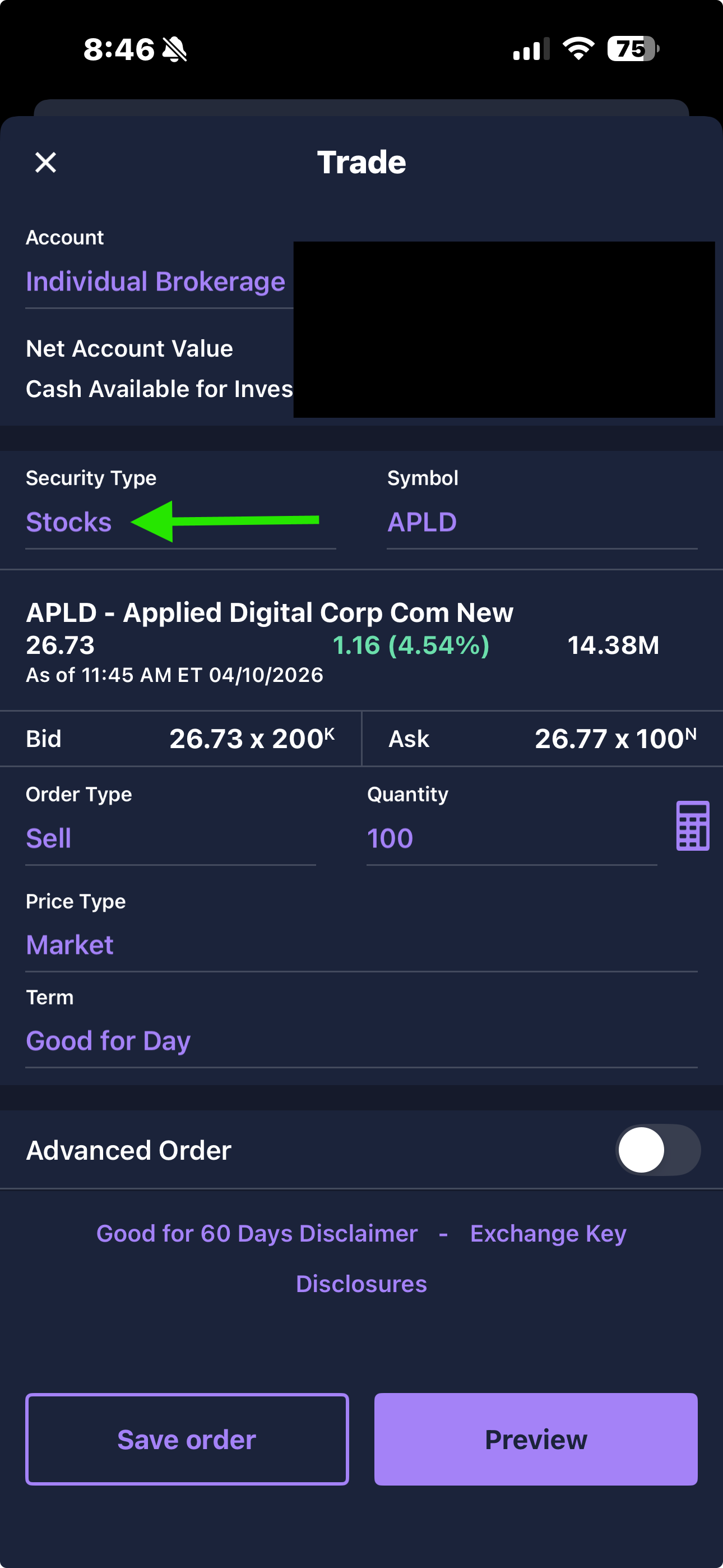
Tap "Stocks" under Security Type to switch it to Options
Select Your Stock from Recent Symbols
After switching to Options, you'll see a list of Recent Symbols. Tap the underlying stock — APLD in this case — to load the options chain.
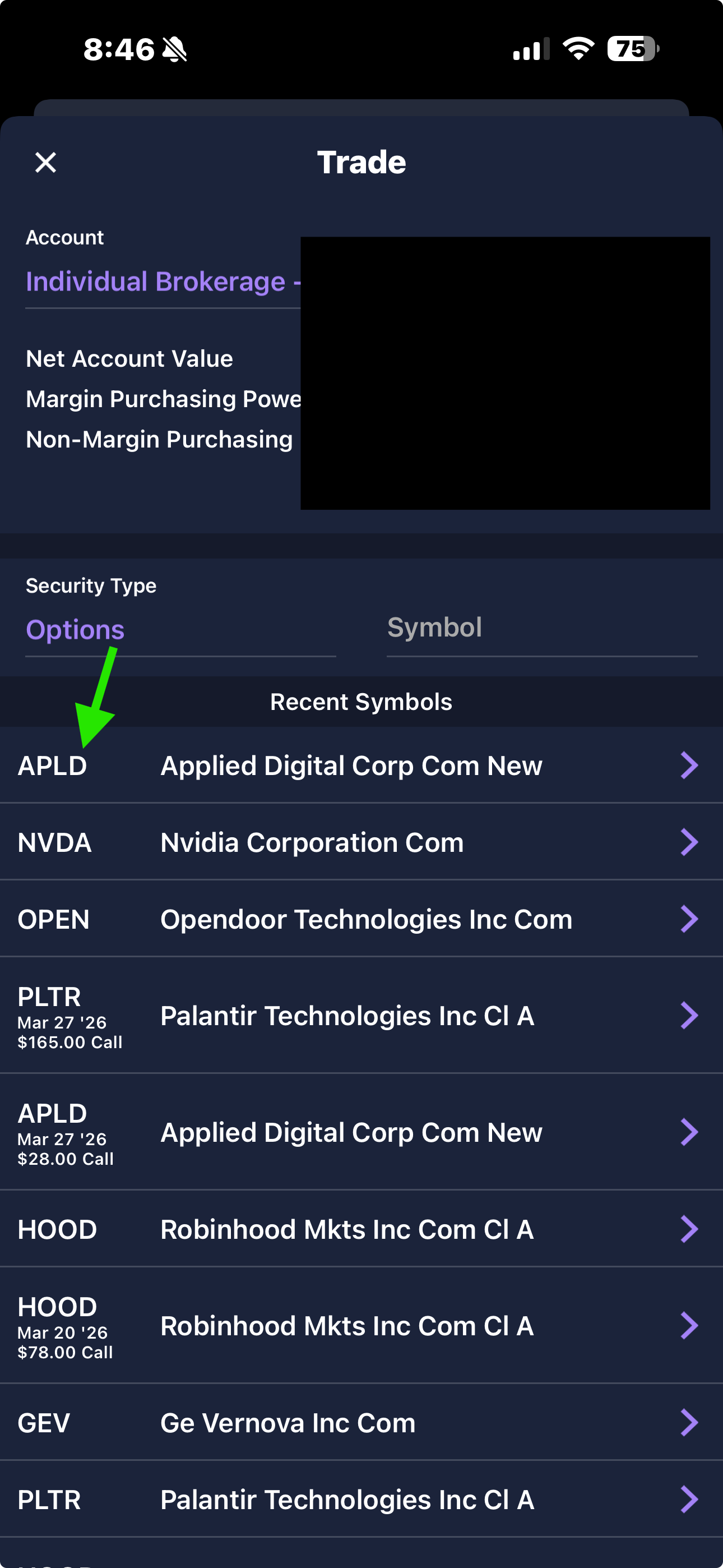
Select your stock from the Recent Symbols list to load the options chain
Select "Sell Open"
E*TRADE asks you to choose an action. Tap Sell Open — this means you're writing (creating) a new options contract and collecting the premium.
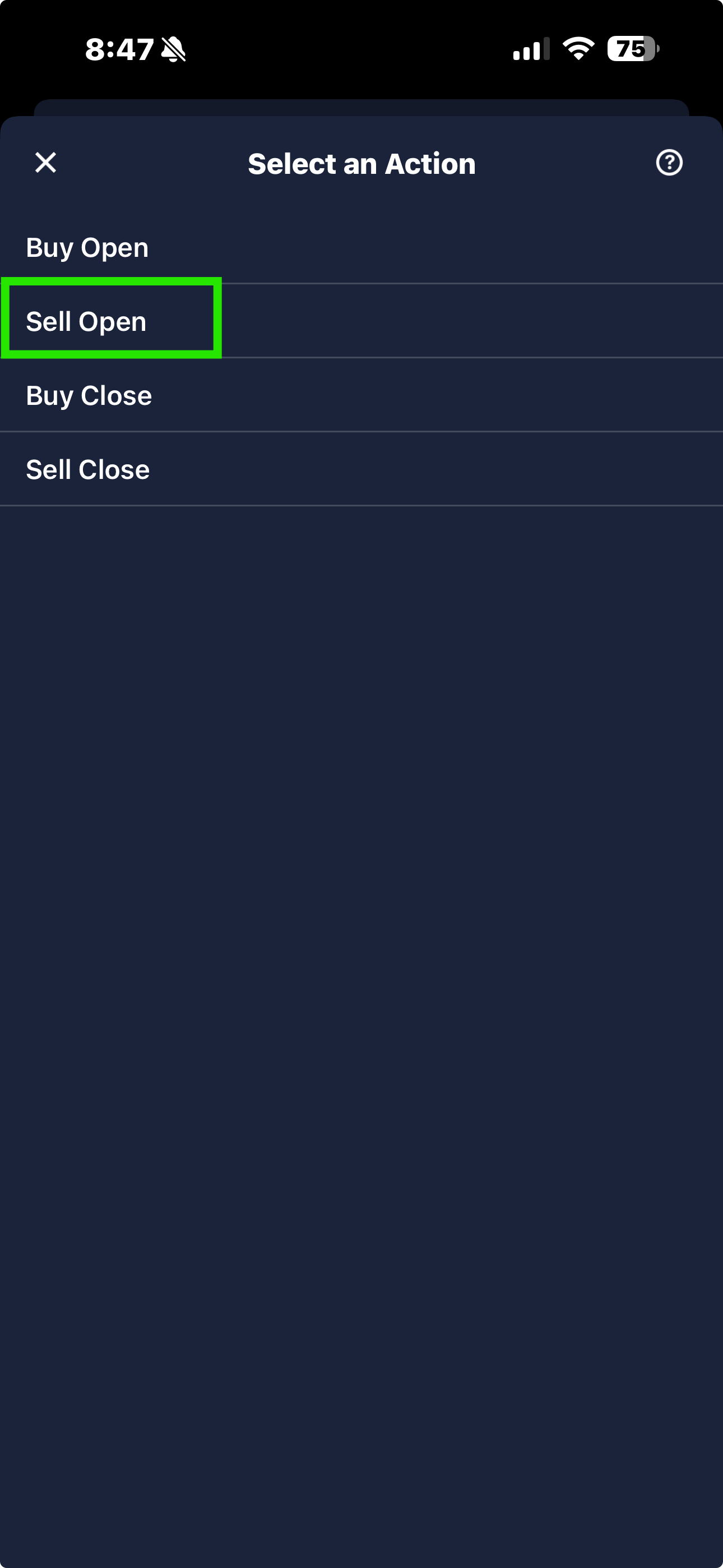
Tap "Sell Open" to write a new options contract
Pick Your Expiration Date and Strike Price
Now you'll see the options chain. Date tabs across the top let you choose your expiration — Apr 10, 2026, Apr 17, 2026, and so on. Farther-out dates offer higher premiums but tie up your shares or cash longer.
The chain shows Calls on the left and Puts on the right, with Strike prices down the middle. Each row displays the bid price, ask price, and volume.
From here, the steps are the same for both strategies — you just tap a different side of the chain.
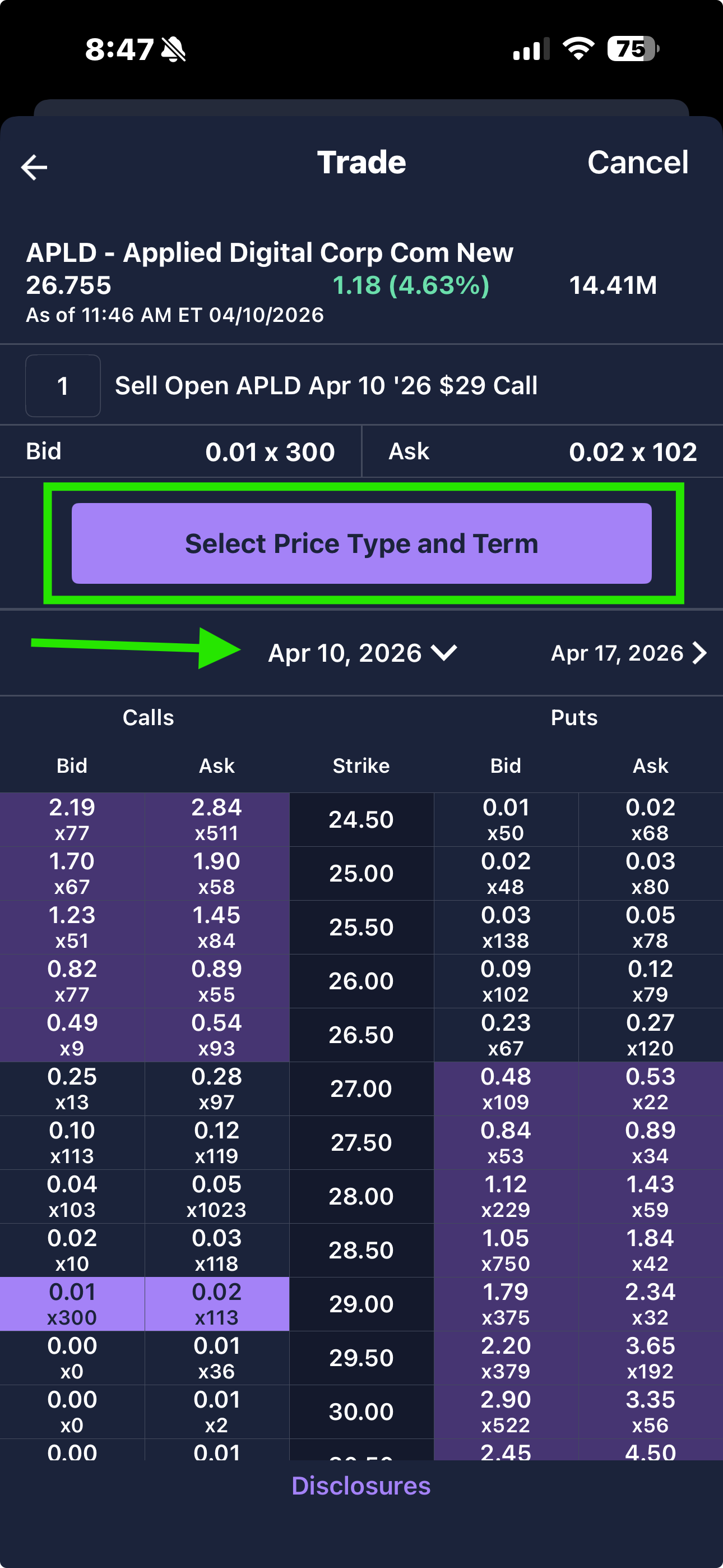
Choose your expiration date, then find your target strike price
For a covered call, look at the Calls side (left columns). Pick a strike price based on how much room you want to give the stock to move:
For a cash-secured put, look at the Puts side (right columns). The logic is flipped:
Tap the Bid Price to Select Your Premium
Tap on the Bid price for the strike you want. The bid represents what buyers are currently willing to pay — this is the premium you'll collect.
In this example, the $28 strike call shows a bid of $0.04. For one contract (100 shares), that's $4.00 in premium collected.
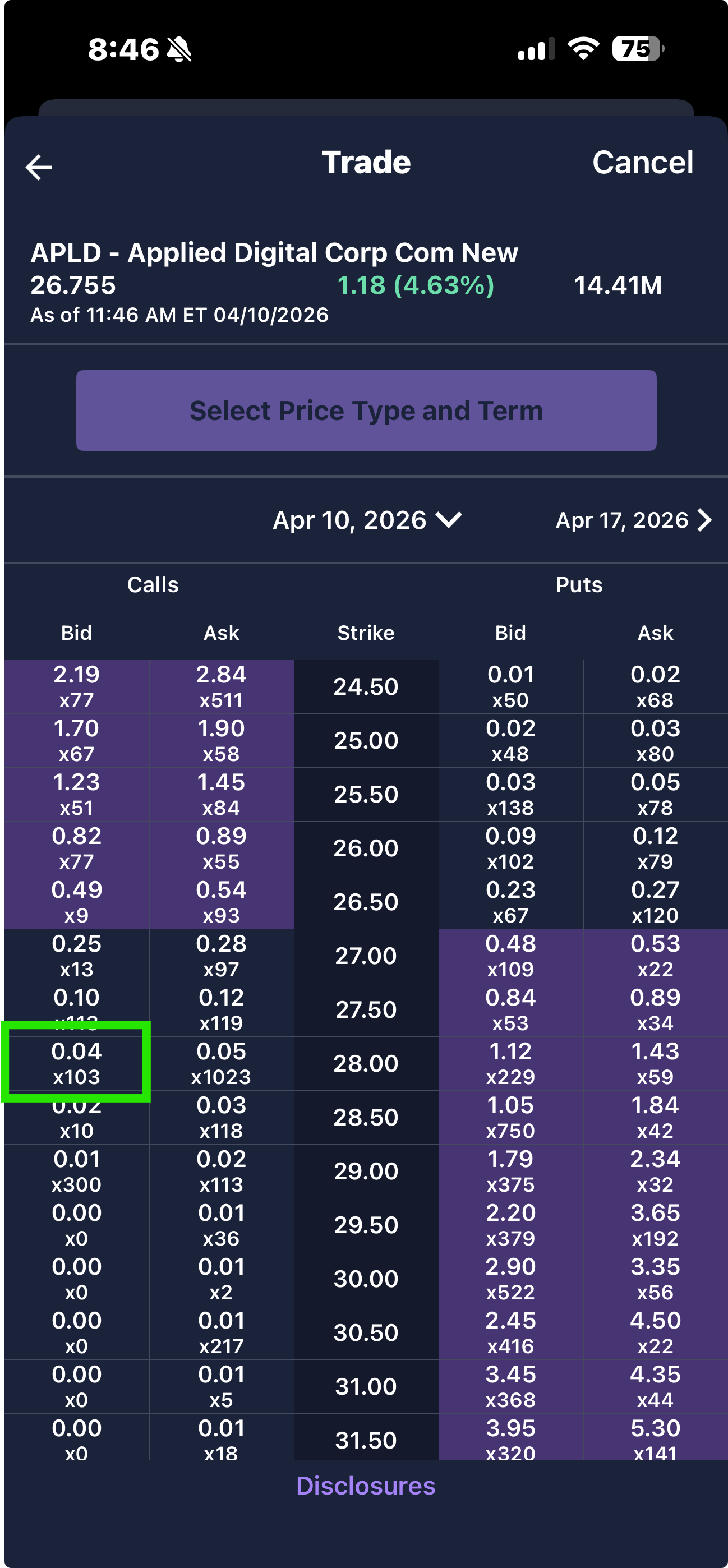
Tap the Bid price on your chosen strike to select it
Set Price Type, Term, and Preview the Order
After selecting your contract, the order confirmation screen appears. Verify the details before submitting:
When everything looks right, tap Preview to review the order details one final time, then confirm to submit.
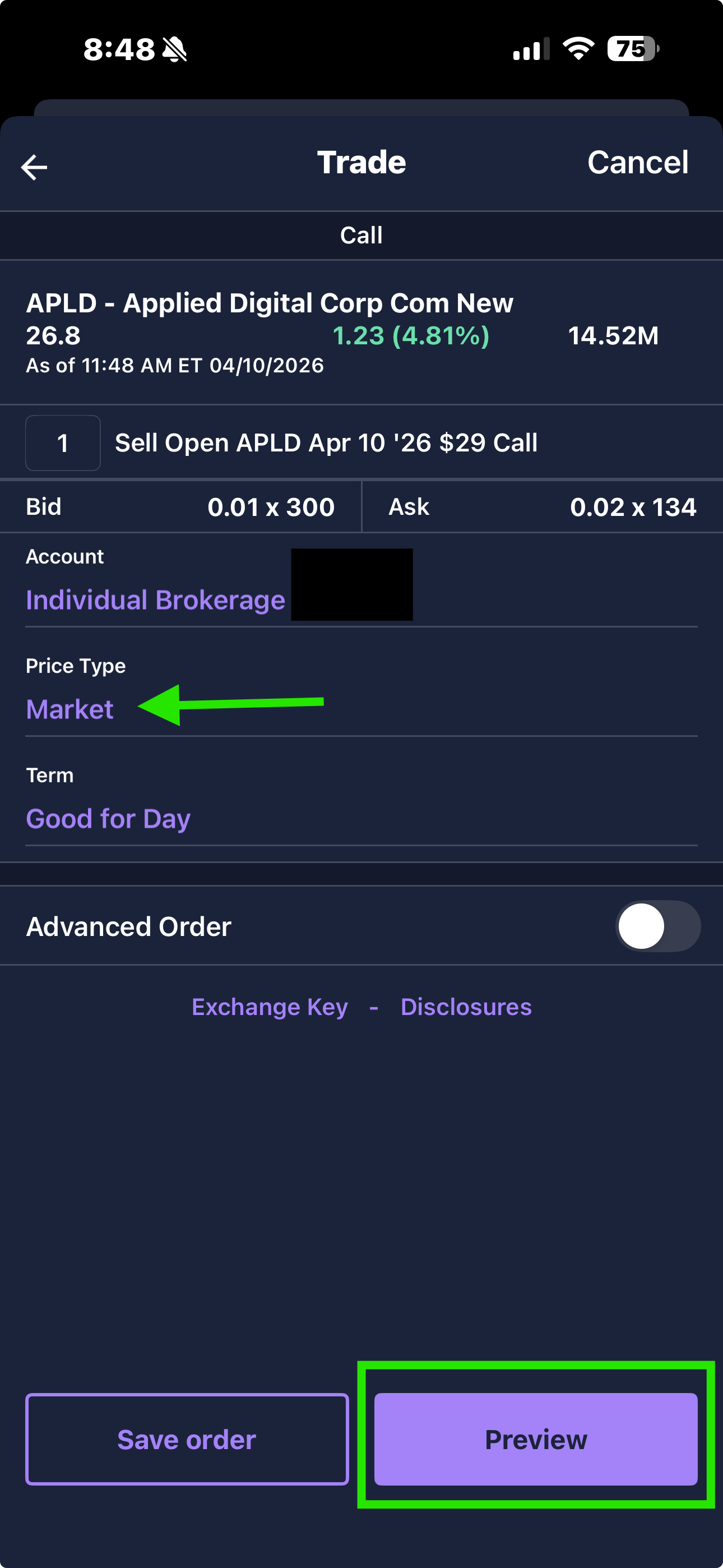
Set Price Type and Term, then tap "Preview" to review before submitting
💡 Quick Tips for Choosing Strikes and Expirations
The bid price is the premium you'll actually receive. If the bid shows $0.00 or $0.01, the contract may not be worth selling — factor in commissions and the risk of assignment.
Options lose value as they approach expiration, and this accelerates in the final week. Weekly options (7 days out) let you collect more frequently; monthlies (30–45 days) pay more per trade but tie up capital longer.
For covered calls, breakeven = strike + premium. For cash-secured puts, breakeven = strike − premium. Make sure you'd be comfortable owning the stock at that level.
Sell a CSP → get assigned (buy the shares) → sell covered calls on those shares → shares get called away → sell CSPs again. This cycle is called the wheel and is a popular way to generate recurring income on stocks you're happy to own long-term.